📡 BLE Sensors — Wireless Data Reading
Guide to configure BLE sensor reading on Rinho IoT devices.
This guide covers BLE sensor reading (temperature, humidity, fuel, presence). To configure a wireless serial terminal to send commands from your phone, see the BLE Pairing (SPP) guide.
🤔 What is BLE sensor reading for?
The BLE module allows connecting wireless sensors to the GPS device:
- 🌡️ Temperature and humidity — Cold chain with Rinho Condition (L02S) sensors
- ⛽ Fuel — Tank level with Escort TD BLE
- 🚪 Doors — Open/close with magnetic (Hall) sensor
- 🏷️ Presence — Driver, tool or trailer detection with iBeacon
- 🆘 Panic — Wireless emergency button with MoKo W6 wristband
Up to 4 simultaneous BLE sensors (BS00 to BS03) can be configured, each linked to a specific sensor by its MAC address.
🔧 Prerequisites
Before starting:
| Requirement | Detail |
|---|---|
| Device | Spider IoT, Smart IoT or Zero IoT |
| BLE Sensor | Rinho Condition (L02S), Escort TD, iBeacon or other compatible |
| Phone app | Cargando... |
| Serial terminal | Cable USB or Cargando... |
🔄 Choose and load BLE firmware
Spider IoT / Smart IoT
The ESP32 has two interchangeable firmware partitions. To use BLE, the Nimble firmware must be loaded:
BLE and WiFi cannot coexist on the same Spider / Smart IoT partition. If both are needed, load each firmware on a different partition and switch with >SFRMCP0< / >SFRMCP1<.
Zero IoT
The Zero IoT has a single firmware that includes both BLE and WiFi. No firmware change is needed, but both features cannot be active simultaneously:
// Use BLE: turn off WiFi
>SSSWIFPWR00<

// Use WiFi: turn off BLE
>SSSBTHPWR00<| Signal | Turn on | Turn off | Function |
|---|---|---|---|
WIFPWR | >SSSWIFPWR11< | >SSSWIFPWR00< | Controls the WiFi module |
BLEPWR | >SSSBTHPWR11< | >SSSBTHPWR00< | Controls the BLE module |
The Zero IoT does not require special firmware. Just disable WiFi with >SSSWIFPWR00< to use BLE, and vice versa.
Load Nimble firmware on Spider / Smart IoT
Set download URL
Start download via WiFi or cellular
>SFRMM1<   // Via WiFi (faster)
>SFRMM2<   // Via cellular (if no WiFi)
Wait for the update
The device downloads, installs and reboots automatically. It may take 2-5 minutes via cellular.
Verify firmware
>QVR<The response should include NIMBLE:
>RVR RINHO IOT v1.09.16 SP EG915U LC86G 16MB NIMBLE 2025-01-15 10:30:00;ID=...Firmware partitions (Spider / Smart): If WiFi is on one partition and BLE is desired on the other, use >SFRMCP0< or >SFRMCP1< to switch between partitions without losing either. Then reboot with >SRST<.
🌡️ Case 1: Temperature and humidity sensor — Rinho Condition (L02S)
The most commonly used sensor with Rinho devices. It measures temperature, humidity and has a magnetic sensor (Hall) for door detection.
📦 Rinho Condition datasheet · Cargando...
Want the complete, ready-to-load configuration? Condition BLE Sensor has a downloadable .txt (WebSerial or Configurator) with the sensor, the report carrying temp/hum/bat and the tracking rules.
Step 0: Power on the sensor
The sensor comes powered off from factory:
- Unscrew the bottom cap of the sensor (counterclockwise)
- Remove the cap to access the interior
- Press the internal button for 3 seconds until the LED blinks
- Screw the cap back on
Once powered on, the sensor starts broadcasting via BLE automatically. To turn off: press and hold the button for 10 seconds.
Step 1: Configure the sensor with BeaconX Pro
Pick the sensor family
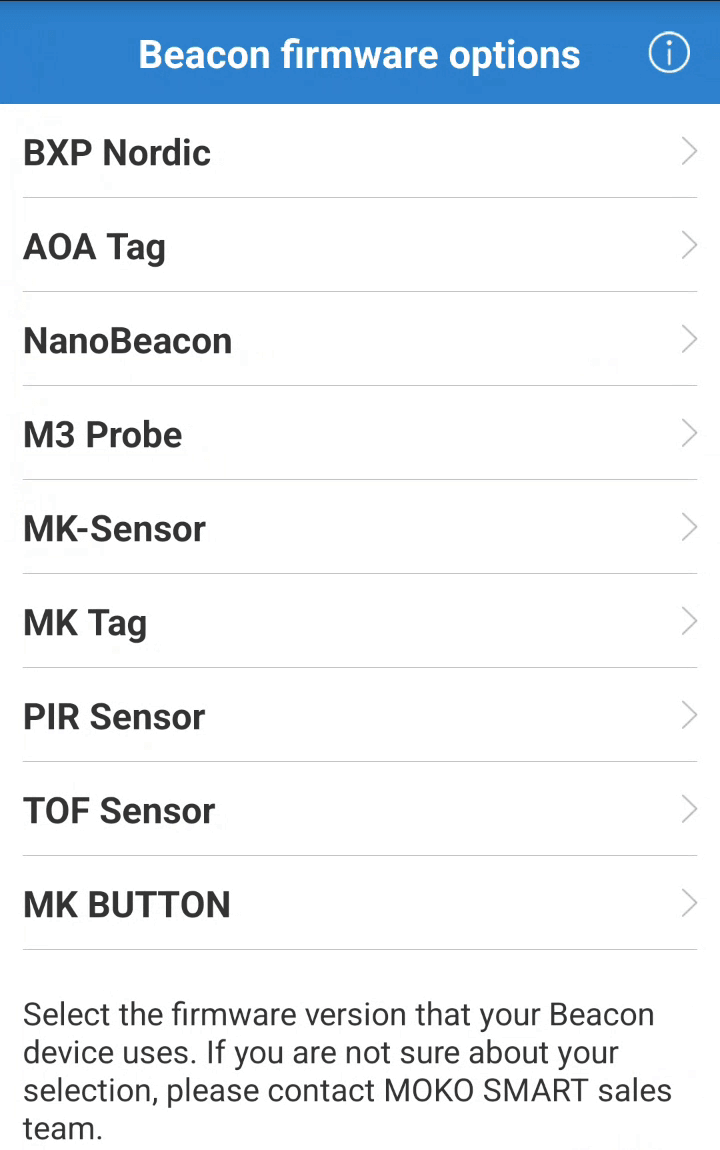
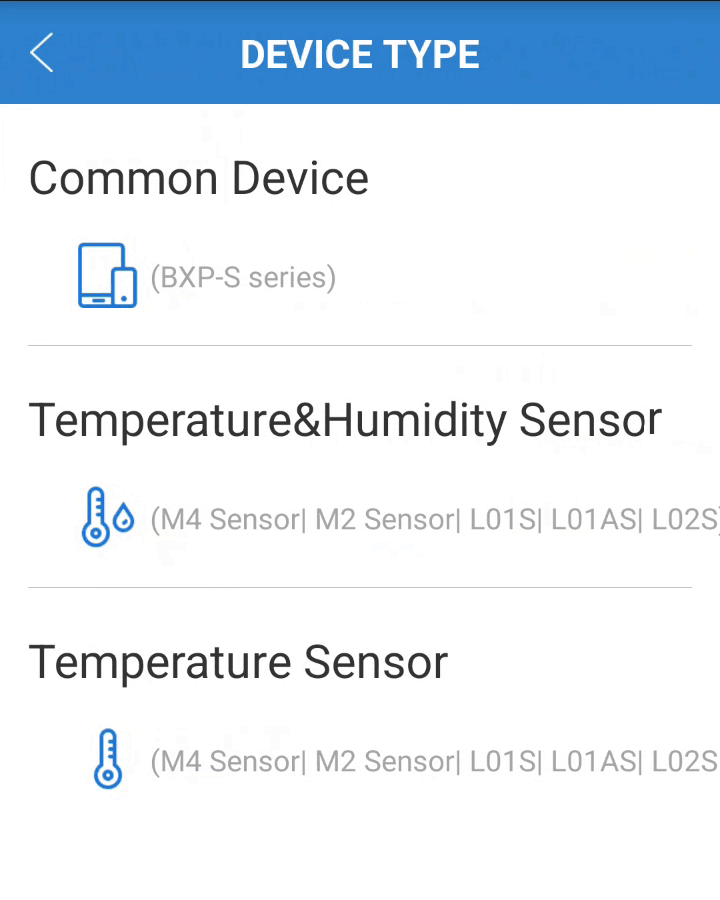
When Cargando... opens it shows the Beacon firmware options list: choose MK-Sensor. On the next screen, DEVICE TYPE, choose Temperature&Humidity Sensor (the family that includes the L02S).
Find the sensor and connect
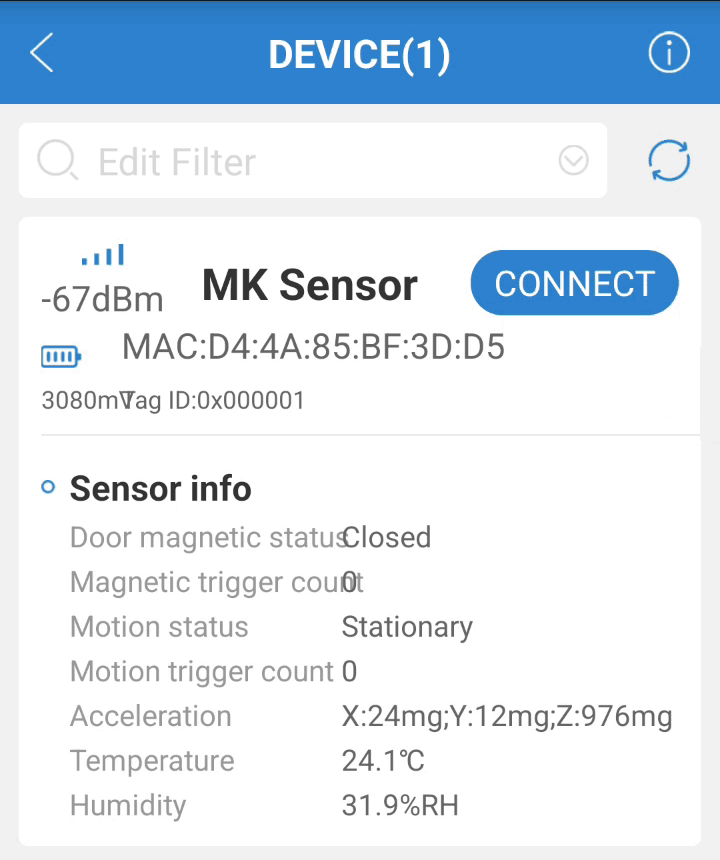
The app scans on its own. The Rinho Condition shows up as MK Sensor and, without connecting, already displays its MAC, battery, temperature, humidity and door state. Write down the MAC: the device takes it without the colons (D4:4A:85:BF:3D:D5 → D44A85BF3DD5). Tap CONNECT and enter the password.
Check that SLOT1 is on Sensor info
After syncing, the SLOT tab lists the sensor’s three advertising channels. Open SLOT1 and confirm that Frame type is Sensor info (the factory setting): that is the frame the Rinho device decodes as type 10, with temperature, humidity, battery, magnetic (Hall) state and accelerometer. Device name and Tag ID can stay as they are.
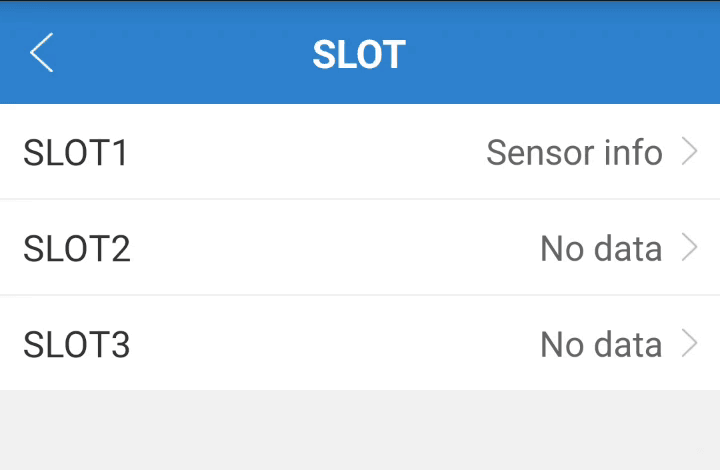
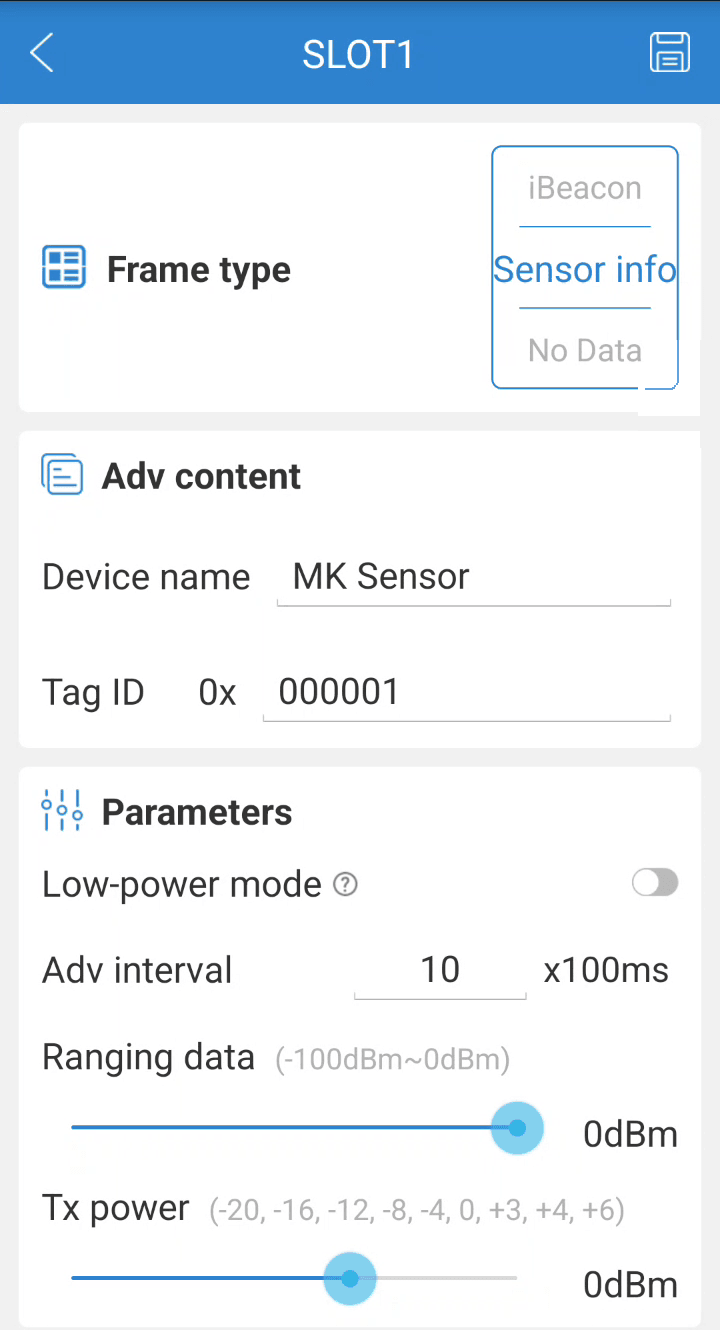
The BS command type must match the frame the sensor advertises: the device discards frames of any other type. Sensor info → type 10. If the app version also offers the T&H frame and that one is chosen, BS goes with type 7.
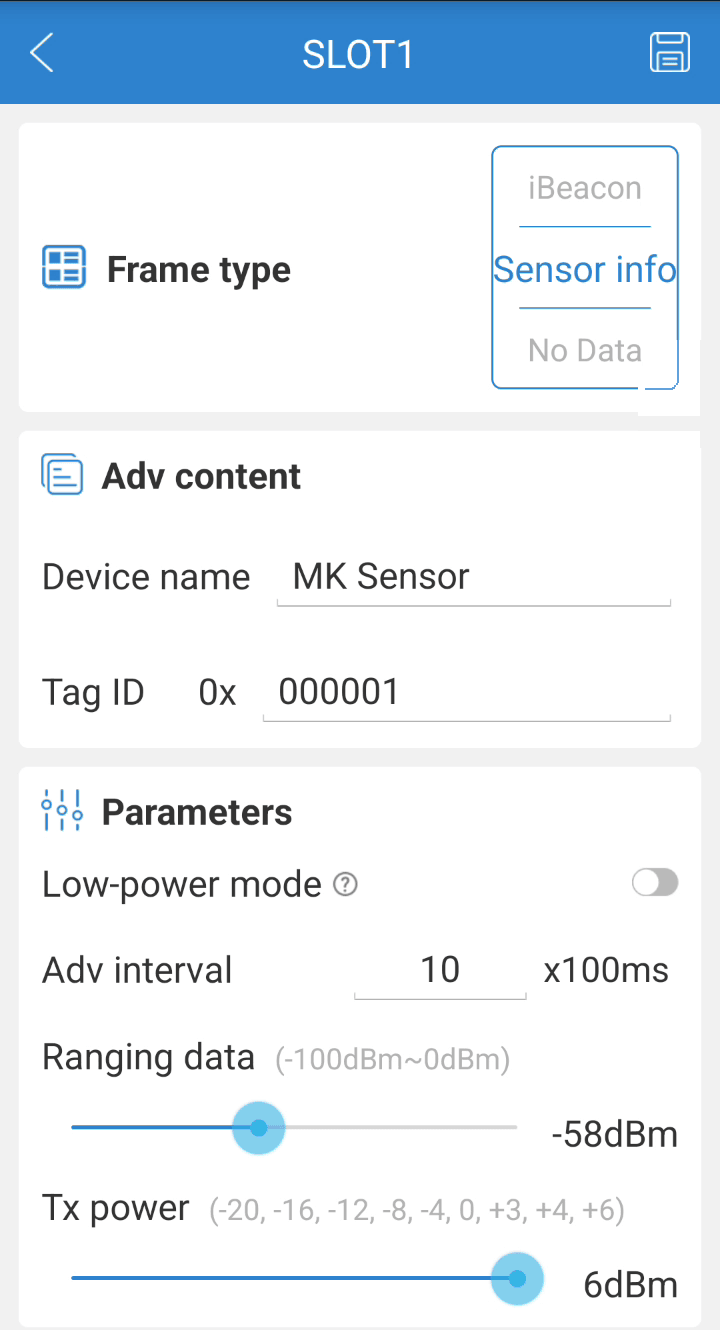
Raise the power for more range
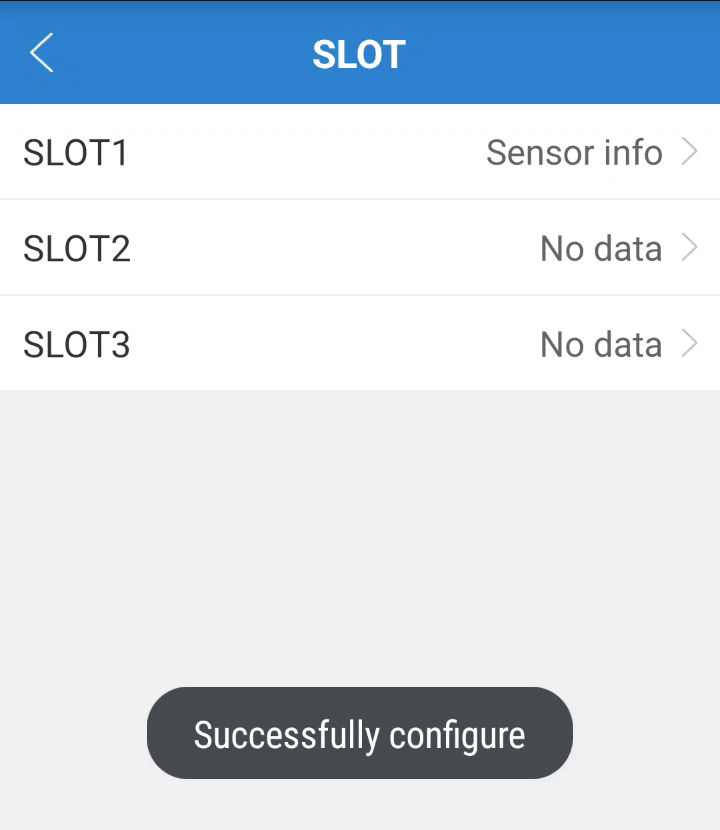
Under Parameters of the same SLOT1 set Tx power to +6 dBm (the sensor’s maximum) and Ranging data to -58 dBm (reference RSSI at 1 m, matching the new power). At factory power (0 dBm) the sensor reaches only a few metres with obstacles; at +6 dBm it covers the trailer and the 1000 mAh battery still lasts years. Tap save (top right): the app confirms with Successfully configure and the sensor disconnects by itself, which is normal.
Configure Hall magnetic sensor (if using door detection)
Critical step if using the Hall effect sensor (door detection). Many users don’t see changes in magnetic state because they skip this step.
By default, the sensor has “Magnet On/Off” mode enabled, which turns the sensor on/off with a magnet instead of reporting magnetic state. To use it as a door sensor, this feature must be disabled:
- In BeaconX Pro, go to the Sensor section
- Find the “Magnet On/Off” option
- Disable “Magnet On/Off”
- Save changes
The sensor will now continuously report the magnetic field state in the mag_st attribute (0 = closed, 1 = open).
Step 2: Configure BS on the device
>SBS00E,AC233FA24B16,10,60,0,INVALID<| Parameter | Value | Description |
|---|---|---|
00 | Index | Sensor position (00 to 03) |
E | Enable | E=Enable, D=Disable |
AC233FA24B16 | MAC | Sensor MAC address (without :) |
10 | Type | 10 = Rinho Condition / Sensor Info (MK) |
60 | Timeout | Seconds without signal to consider disconnected |
0 | Distance | 0 = no distance filter |
INVALID | Invalid value | Text when no valid reading |
Step 3: Verify reading
Query sensor attributes with the QBS command:
>QBS00<           // General sensor status
>QBS00.temp<      // Temperature (e.g., 23.5)
>QBS00.hum<       // Humidity (e.g., 65)
>QBS00.mag<       // Magnetic (0=closed, 1=open)
>QBS00.batt<      // Sensor battery (%)
>QBS00.rssi<      // BLE signal strength
Typical full response:
>RBS00E,AC233FA24B16,10,60,0,INVALID;mag_st:0,mot_st:0,mag_cnt:5,mot_cnt:0,x:0,y:0,z:0,temp:23.5,hum:65,batt:95,tag:MK,rssi:-52;ID=...Available attributes for type 10 (MK): mag_st (magnetic), mot_st (motion), mag_cnt, mot_cnt, x, y, z, temp, hum, batt, tag, rssi.
⛽ Case 2: Fuel sensor (Escort TD BLE)
The Escort TD is a wireless fuel level sensor installed in the tank.
Configure BS
>SBS01E,A1B2C3D4E5F6,30,60,10,INVALID<| Parameter | Value | Description |
|---|---|---|
01 | Index | BS01 (can be any from 00-03) |
30 | Type | 30 = Escort TD (Fuel) |
A1B2C3D4E5F6 | MAC | Escort TD MAC |
Query level
>QBS01.fuel_lvl<   // Fuel level
>QBS01.battery<    // Sensor battery
>QBS01.temp<       // Temperature
Response:
>432;ID=... // 432 = fuel level (unit depends on sensor)🏷️ Case 3: iBeacon for presence and panic
iBeacons are simple beacons that broadcast their identity. Useful for knowing if a driver, tool or trailer is nearby.
Configure BS with iBeacon
>SBS02E,AABBCCDDEEFF,2,30,5,0<| Parameter | Value | Description |
|---|---|---|
02 | Index | BS02 |
2 | Type | 2 = Eddystone UID / iBeacon presence |
30 | Timeout | 30 seconds without signal = absent |
5 | Distance | 5 meters maximum |
Use signals in rules
Each BS sensor generates automatic signals that can be used in the event engine:
| Signal | Meaning |
|---|---|
BS02+ | Beacon was detected (entered range) |
BS02- | Beacon was lost (left range or timeout) |
Rule example: Report when a driver boards or leaves the vehicle:
// Rule: when driver's beacon is detected, report
>SRL00E;TRG=BS02+;ACC={GCQ00H}<

// Rule: when beacon is lost, report
>SRL01E;TRG=BS02-;ACC={GCQ00H}<
🔍 BSW: Auto-detection for dynamic scenarios
The BSW (Bluetooth Smart Wildcard) system automatically detects sensors without knowing their MAC beforehand. It filters by iBeacon UUID, Major and Minor.
When to use BSW instead of BS?
| Scenario | Use |
|---|---|
| Fixed sensor, always the same | BS (with MAC) |
| Interchangeable semi-trailer | BSW (no MAC, filter by UUID) |
| Multiple identical sensors rotating | BSW |
| Fleet with trailers switching tractors | BSW |
Example: Tractor connecting to different trailers
Each trailer has a beacon with the same UUID but different Major. The tractor automatically detects which trailer is attached:
// BSW00 captures beacons with specific UUID and injects into BS00
>SBSW00E,00,2F234454CF6D4A0FADF2F4911BA9FFA6,0,0,30,5<| Parameter | Value | Description |
|---|---|---|
00 | BSW Index | BSW00 |
E | Enable | |
00 | Target | Inject captured MAC into BS00 |
2F23...FFA6 | UUID | Trailer beacon UUID |
0 | Major | 0 = any Major |
0 | Minor | 0 = any Minor |
30 | Timeout | 30 seconds |
5 | Distance | 5 meters maximum |
Query BSW status
>QBSW00<Response with detected device:
>RBSW00E,00,2F234454CF6D4A0FADF2F4911BA9FFA6,0,0,30,5;detects:1,active:1,mac:AA:BB:CC:DD:EE:FF,rssi:-45,distance:1.50,age:3;ID=...BSW with multiple targets
To monitor temperature in 4 zones of a refrigerated trailer, with one sensor per zone:
// BSW00 captures sensors with Major 1-4 and distributes them to BS00-BS03
>SBSW00E,00:01:02:03,2F234454CF6D4A0FADF2F4911BA9FFA6,1,4,60,0<
The Major 1 to 4 range makes BSW capture up to 4 different sensors and assign them to BS00, BS01, BS02 and BS03 respectively.
📊 Integrate BLE data into reports
To have the platform receive BLE sensor data, configure a user report (SUC) that includes QBS tokens:
Example: Report with temperature and humidity
>SUC04 $RCQ| #| QCQ,5,64| $;PA=temp:2:| QBS00.temp| $;PA=hum:2:| QBS00.hum| $;PA=mag:1:| QBS00.mag<| Token | Description |
|---|---|
$RCQ | Report header |
# | Sequence number |
QCQ,5,64 | Standard GPS position |
$;PA=temp:2: | Additional parameter “temp” float type (2) |
QBS00.temp | BS00 temperature value |
$;PA=hum:2: | Additional parameter “hum” float type (2) |
QBS00.hum | BS00 humidity value |
$;PA=mag:1: | Additional parameter “mag” integer type (1) |
QBS00.mag | BS00 magnetic value |
Data types for PA parameters
| Code | Type | Example |
|---|---|---|
1 | Integer | mag:1:0 |
2 | Float | temp:2:23.5 |
3 | String | tag:3:MK |
Generate the report
>GCQ04H< // Generates a SUC04 report and sends itSee G command for more generation options.
Device response:
>RCQ04...;PA=temp:2:23.5;PA=hum:2:65;PA=mag:1:0;ID=...🔗 Create rules with BLE sensors
BS signals can be used to create automations with rules (RL) and user triggers (UV):
Example 1: High temperature alert
First create a user trigger (UV) that monitors temperature and activates when it exceeds 35 degrees:
// UV00: monitors QBS00.temp (float), activates when value is between 350 and 9999
// (sensor reports temp x10, so 350 = 35.0 degrees)
>SUV00FQBS00.temp,0,10,350,9999<

// Rule: if UV00 activates (high temp), generate report
>SRL02E;TRG=UV00+;ACC={GCQ04H}<

// Rule: if UV00 deactivates (normal temp), generate report
>SRL03E;TRG=UV00-;ACC={GCQ04H}<| SUV Parameter | Value | Description |
|---|---|---|
00 | Index | Trigger UV00 |
F | Type | Float (floating point) |
QBS00.temp | Command | Value to monitor |
0 | Start | Position of first character |
10 | Length | Number of characters to extract |
350 | Minimum | Minimum value to activate (35.0 degrees) |
9999 | Maximum | Maximum value |
Example 2: Door open alert (magnetic sensor)
// UV01: monitors magnetic state, activates when mag is 1 or more
>SUV01FQBS00.mag,0,10,1,2<

// Rule: door open (magnetic = 1)
>SRL04E;TRG=UV01+;ACC={GCQ04H}<

// Rule: door closed (magnetic = 0)
>SRL05E;TRG=UV01-;ACC={GCQ04H}<
Example 3: Driver presence (direct BS signal)
// BS02 has the driver's iBeacon
// Rule: report when driver boards (beacon detected)
>SRL06E;TRG=BS02+;ACC={GCQ00H}<

// Rule: report when driver leaves (beacon lost)
>SRL07E;TRG=BS02-;ACC={GCQ00H}<
🐛 BLE Debugging
When a sensor doesn’t appear or data is incorrect, enable BLE debug:
View raw BLE frames
Use the DB command to enable BLE debug:
>SDB0+BLX<This shows in the debug console all BLE packets received by the device, including MACs, types and raw data. Useful for:
- Verifying the sensor is broadcasting
- Confirming the MAC address
- Checking if the sensor type is correct
- Diagnosing unknown sensors
Disable BLE debug
>SDB0-BLX<Enable general debug
>SDB1<    // Level 1: main messages
>SDB2<    // Level 2: more detail
🔧 Troubleshooting
| Problem | Possible cause | Solution |
|---|---|---|
QVR doesn’t show NIMBLE or BLE | Incorrect firmware (Spider/Smart) | Load Nimble firmware (see firmware section) |
| Sensor not detected | Incorrect MAC | Verify MAC with BeaconX Pro |
QBS00 returns INVALID | Sensor out of range or powered off | Move sensor closer, check battery |
| Temperature always 0 | Wrong sensor slot configuration | Configure Slot 2 as Sensor Info in BeaconX Pro |
| WiFi stopped working (Spider/Smart) | BLE and WiFi share partition | Normal: use partitions (>SFRMCP<) |
| WiFi stopped working (Zero) | BLE and WiFi mutually exclusive | Turn off BLE with >SSSBTHPWR00< before using WiFi |
| Hall always 0 | ”Magnet On/Off” mode active | Disable in BeaconX Pro, Sensor section |
| Device slower | BLE scanning uses resources | Normal, consider scan intervals |
| Sensor works intermittently | Weak signal or interference | Check >QBS00.rssi<, move sensor closer |
📱 Useful apps
| App | Platform | Use |
|---|---|---|
| Cargando... | Android/iOS | Configure MoKo sensors (slots, intervals, Hall) |
| Cargando... | Android | Send commands to Rinho device via BLE |
| Cargando... | Android/iOS | Scan and debug generic BLE devices |
📝 Full example
Typical configuration of a device with Rinho Condition (L02S) temperature sensor and driver presence beacon:
// 1. Verify BLE firmware
>QVR<
>RVR RINHO IOT v1.09.16 SP EG915U LC86G 16MB NIMBLE ...;ID=...

// 2. Configure temperature sensor on BS00
>SBS00E,AC233FA24B16,10,60,0,INVALID<
>RBS00E,AC233FA24B16,10,60,0,INVALID;...

// 3. Verify temperature reading
>QBS00.temp<
>23.5;ID=...

// 4. Configure driver beacon on BS02
>SBS02E,DDEEFF112233,2,30,5,0<
>RBS02E,DDEEFF112233,2,30,5,0;...

// 5. Create report with temperature
>SUC04 $RCQ| #| QCQ,5,64| $;PA=temp:2:| QBS00.temp| $;PA=hum:2:| QBS00.hum<

// 6. Rule: report when driver boards/leaves
>SRL00E;TRG=BS02+;ACC={GCQ04H}<
>SRL01E;TRG=BS02-;ACC={GCQ04H}<

// 7. Rule: high temperature alert
>SUV00FQBS00.temp,0,10,350,9999<
>SRL02E;TRG=UV00+;ACC={GCQ04H}<

// 8. Test manual report
>GCQ04H<
>RCQ04...;PA=temp:2:23.5;PA=hum:2:65;ID=...
📖 Command summary
| Command | Function | Reference |
|---|---|---|
>SBS00E,MAC,type,...< | Configure BLE sensor | BS IoT |
>QBS00< | Sensor status | BS IoT |
>QBS00.temp< | Read specific attribute | BS IoT |
>SBSW00E,...< | Configure auto-detection | BSW IoT |
>QBSW00< | Wildcard status | BSW IoT |
>SUV00F...< | User trigger | UV |
>SRL00E;TRG=...;ACC={...}< | Event engine rule | RL |
>SUC04 ...< | User report | User reports |
>GCQ04H< | Generate report | G |
>SDB0+BLX< | BLE debug | DB |
>SFRMM1< / >SFRMM2< | Update firmware | — |
>SFRMCP0< / >SFRMCP1< | Switch partition | — |
>SSSWIFPWR00< | Turn off WiFi (Zero IoT) | — |
>SSSBTHPWR00< | Turn off BLE (Zero IoT) | — |
🎯 Next steps
- 🌡️ Condition BLE Sensor — Complete downloadable configuration: temperature, humidity and battery in every report
- 📲 BLE Pairing (SPP) — Wireless terminal for phone configuration
- 🚀 Getting Started — Basic device configuration
- 📶 Configure WiFi — WiFi as an alternative channel
- 🧠 Event Engine — Create advanced rules
- 📡 BLE Commands — Full reference for BS, BSW and BE